The integrated AI workspace
Connect your Claude or ChatGPT account and get all your work done
Connect your account
with a single sign-in
Mulleh doesn’t have an AI of its own. It connects Claude Code and Codex, the official computer apps from Claude and ChatGPT, so that AI can work on your computer.
- Already installed? Just sign in. If you’re signed in already, it connects right away.
- New to them? One “Install and connect” button takes you from install to sign-in.
AI usage comes out of the plan you already have.

Keep the conversation,
switch the AI
Hand a chat you started with Claude over to ChatGPT and pick up right where you left off.
- Pick a GPT model from the model chip in the chat box
- The new AI reads the conversation so far and carries on
- Or choose a different AI for each chat

One sentence turns weekly work into a routine
The AI does it on schedule, and you just review and approve the results.

- Tell the chat, “Every Monday at 9 a.m., summarize last week’s sales”
- The routine gets created, schedule and all
- It runs once right away so you can preview the results
The AI works your everyday apps, too
Ask for a slide deck and it opens Keynote to build one. Tell it what to change, and it fixes it on the spot.

- Tell the chat, “Turn that analysis into a 5-slide deck for the fall menu meeting, in Keynote”
- Hand off Numbers or Mail the same way
- The finished deck stays as a Keynote file
The AI builds its own harness for each app as it learns
It records what it verified while working an app and reads that first the next time.
You can also see and manage the access you’ve allowed at a glance.

- Only actions with verified results are kept as learned actions
- It notes which app version each one was verified on
- Let it use the apps you rely on without asking
Attach your terminal to the AI, anytime
Hand off what you were doing in a click, and jump back in yourself whenever you need to.

- Right-click a terminal tab to attach it to Claude Code, Codex or a chat
- It asks before typing commands into another tab
- Your claude and codex config files stay untouched
Break big work into a roadmap
When the AI finishes a task, the next step in the flow chart opens up right away.

- Connect tasks with arrows to make a flow chart
- Double-click a card to open its task document
- Progress goes up on its own as tasks get done
Frequently asked questions
Is it free?
Yes, the app is free. AI usage is billed to the Claude or ChatGPT account you connect — no API key needed.
Do I need to be a developer?
No. You can use just the chat — there’s no need to open a terminal. The app installs Claude Code and Codex and signs you in.
How do I add a browser or terminal?
Drag a tab onto a chat, or right-click it and choose where it goes. The + in the chat box works too. The AI reads and works what you add right away, and asks before it types into another tab or messages another AI. A mark on the tab’s corner shows which chat is using it.
How does it work with web apps like Google Sheets?
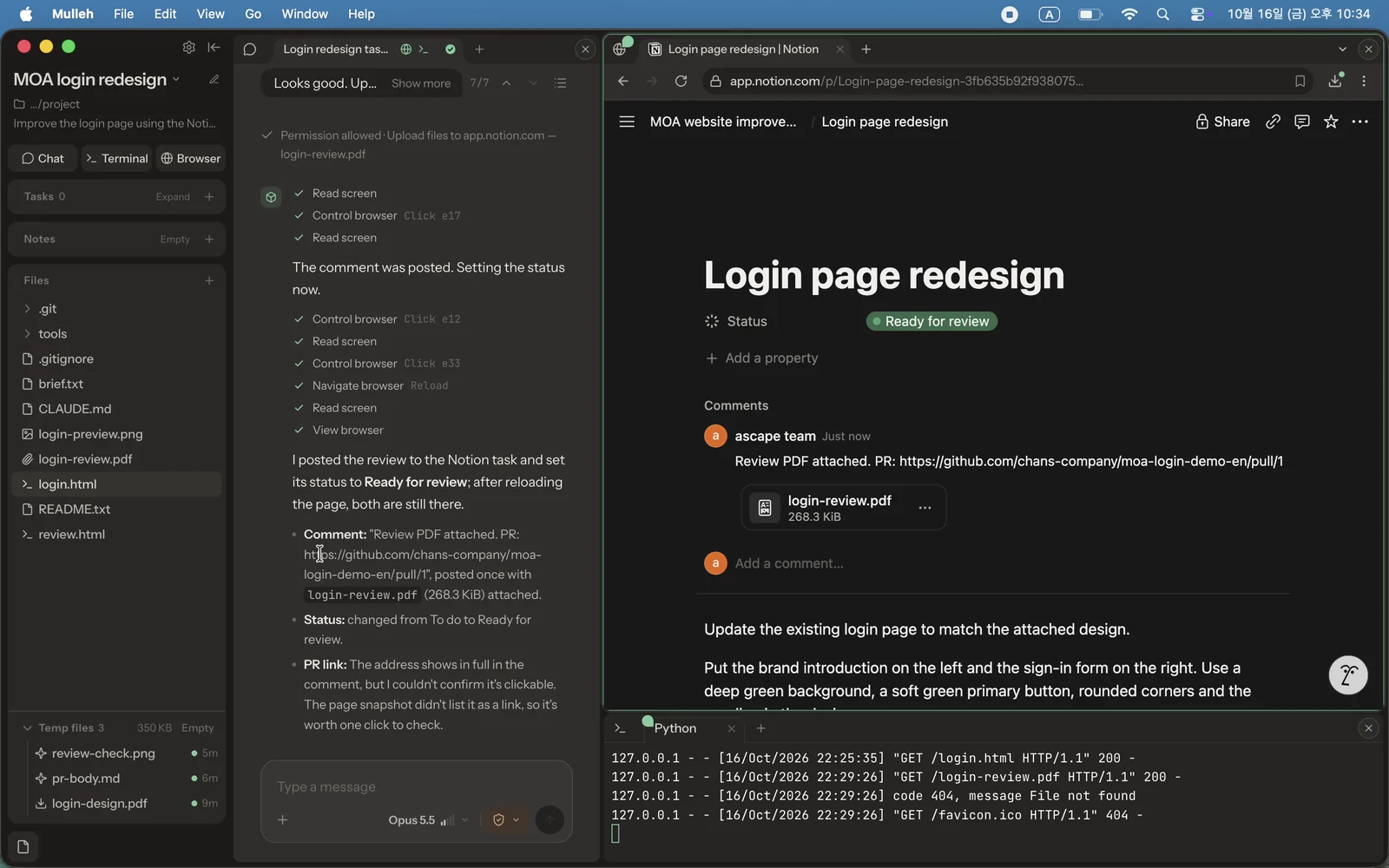
Sign in with your usual account in the app’s browser, then add that window to a chat. The AI reads the page and works it directly, filling in cells and clicking buttons.
Will the AI change my files on its own?
New chats only read. The AI asks before changing files or running commands, and you choose how much to allow per chat with “Always allow” in the chat box. It reads only this project’s files and asks before touching anything outside it. Deleting only moves things to the trash: tasks, chats and files in the app’s trash can be restored for 30 days, and files in your own folders go to the system trash. claude and codex in the terminal follow your own approval settings.
Will the AI send emails or messages on its own?
In apps like Mail, it asks before pressing send, post or pay. To skip the question, set that app’s sending to “Always allow” in Settings › App access. Pages in the app’s browser aren’t blocked by the app; instead, the AI is told to check with you before sending.
Will it change my claude settings?
No. The app adds its tools only when you launch claude in the app’s terminal, and it doesn’t write to your config files. If you install an engine with “Install and connect”, the official installer may add a PATH line to your shell config.
Which files can it read?
Add PDF, Word, Excel, PowerPoint or HWP files to a chat and the AI reads them — when you chat with Claude, too.
Where are my files and chats?
On this computer, as files. Task documents are Markdown, so other apps can open them. You can also use a folder you already have as a project.
What gets sent to the AI?
What you send and what the AI reads — files, pages and terminal output you add, other chats — goes to Anthropic or OpenAI through the Claude Code or Codex you connected, under that service’s terms and your account settings. Web searches go to the search engine.
How are passwords and API keys kept?
They go into your system keychain, and their values are never sent to the AI.
What does Mulleh collect?
Only usage stats and error reports — never your text or file names. You can turn off usage stats in Settings › About. What we collect and why is in the Privacy Policy.
Windows shows a warning
The app isn’t code-signed for Windows yet, so Windows doesn’t recognize it. Click “More info”, then “Run anyway”. The install guide shows it step by step.