Mulleh
English
Download

The integrated AI workspace

Connect your Claude or ChatGPT account and manage all your work in one place

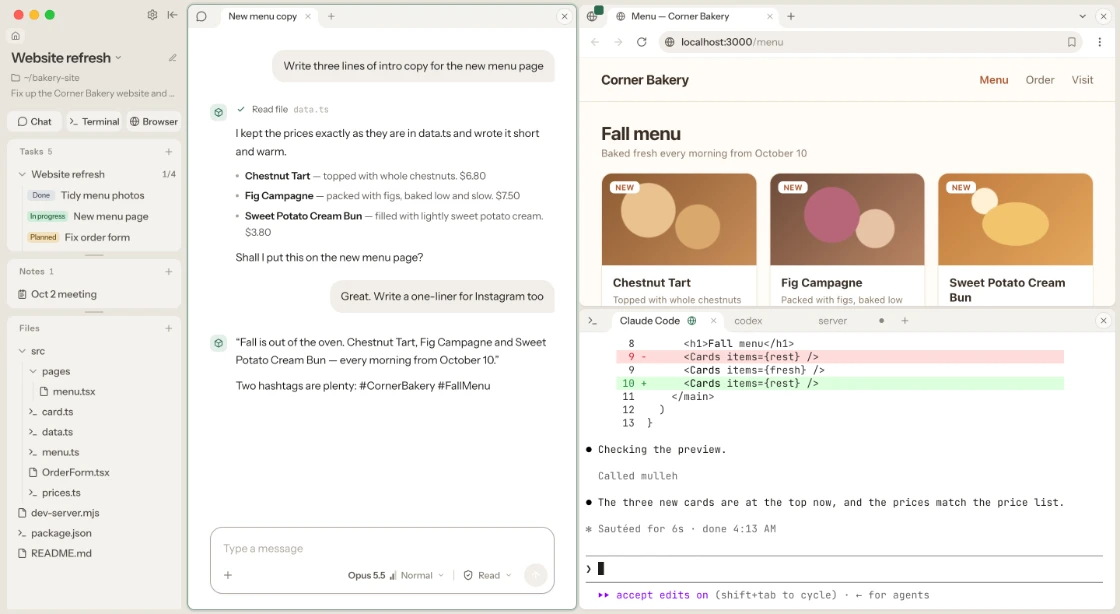
Mulleh. The left panel lists the tasks, notes and files of the “Website refresh” project. In the middle, a chat is writing copy for the new menu. Top right, the browser shows the website preview; below, Claude Code in the terminal has that preview window added, fixes the menu page and checks it there.

Connect your Claude or ChatGPT account
in one click

  1. 1Click “Sign in”

    Settings › AI engines. Claude Code and Codex both show “Sign-in needed,” each with a Sign in button.
  2. 2Sign in through your browser

    Claude Code shows “Signing in” and says it connects automatically once you sign in in your browser.
  3. 3Connected — chat right away on your plan

    Claude Code and Codex are both connected, with defaults for new chats (engine, model, depth and Always allow).

Keep the conversation,
switch the AI

Hand a chat you started with Claude over to ChatGPT and pick up right where you left off. Or just choose per chat.

The model picker in a chat. Above is a conversation with Claude about new menu copy; hovering GPT-5.5 Codex in the opened Codex group shows “Hands the conversation so far to Codex and continues.”

Work the way you already do

ChatNo coding needed

Just say what you need

A chat. Asked to write a press release draft for the fall menu using the price list, the AI reads “Price list.xlsx” and writes “Press release draft.md”. A line shows it asked before writing and was allowed.
TerminalFor developers

Your claude and codex, as they are

A Claude Code tab in the app’s terminal. Asked to add a phone field to the order form, it adds one line to the order form file. Next to it are codex and server tabs.

Run several chats
at once, in tabs

Start something new in another tab while one chat works. A dot shows which tabs are done or waiting on you.

Four tabs in one chat window — New menu copy, Press release draft, Fall menu prices and This week’s sales. The open one is reading a file; Press release draft has an orange dot for a pending approval, and Fall menu prices has a dot for a new reply.

Add a browser or terminal,
and the AI works it directly

In a chatAdd the orders page, and it writes the reply and sends it
A chat above a browser window, in motion. Asked to draft a reply to the group order inquiry, the AI reads the orders page, puts a draft in the reply box and asks whether to send it. After “Yes, send it,” it clicks Send reply and the button turns to “Sent.” The chat tab shows the added browser after its name, and the browser window’s corner shows that this chat is using it.
In a terminalAdd the server tab, and it changes the price and restarts the server
Two terminal windows, in motion. In the Claude Code tab on top, which has the server tab below added, “raise the cream bun to $3.90 and restart the dev server” — it edits the price file, and the app asks before typing into the server tab. Once allowed, Ctrl+C and npm run dev go into the server tab and the dev server comes back up.

Connect other apps, too

Connected apps give the AI that much more room to work.

Settings › App connections. Services like Gemini Image, OpenAI and Discord connect with an API key, and apps on this computer such as Notes, Numbers, Calendar and Reminders connect with one button.

Chat or terminal,
it all flows into one task document

  1. 1While the chat rests, its task document gets updated

    The “Press release draft” task document after the chat went quiet: new lines under Decisions, Good to know and Next steps, and “Write the first draft” checked off.

When it grows, make a roadmap

Connect tasks with arrows and a flow chart draws itself.

The “Fall menu launch” roadmap as a flow chart. Finalize menu and Set prices are done; Press release draft and Shoot photos are in progress. Order takeout cups can start now, and Instagram post waits on the tasks before it.

Hand off daily work as a routine

The AI does it on schedule — you just review and approve.

The “Check competitor prices” routine, which runs at 9 AM on weekdays. Of three results, bakery A is approved, and B and C wait for approve or reject. Approved results are added to the price survey sheet.

Frequently asked questions

Is it free?

Yes, the app is free. AI usage is billed to the Claude or ChatGPT account you connect — no API key needed.

Do I need to be a developer?

No. You can use just the chat — there’s no need to open a terminal. The app installs Claude Code and Codex and signs you in.

How do I add a browser or terminal?

Drag a tab onto a chat, or right-click it and choose where it goes. The + in the chat box works too. The AI reads and works what you add right away, and asks before it types into another tab or messages another AI. A mark on the tab’s corner shows which chat is using it.

Will the AI change my files on its own?

New chats only read. The AI asks before changing files or running commands, and you choose how much to allow per chat with “Always allow” in the chat box. It reads only this project’s files and asks before touching anything outside it. Deleting only moves things to the trash: tasks, chats and files in the app’s trash can be restored for 30 days, and files in your own folders go to the system trash. claude and codex in the terminal follow your own approval settings.

Will it change my claude settings?

No. The app adds its tools only when you launch claude in the app’s terminal, and it doesn’t write to your config files. If you install an engine with “Install and connect”, the official installer may add a PATH line to your shell config.

Which files can it read?

Add PDF, Word, Excel, PowerPoint or HWP files to a chat and the AI reads them — when you chat with Claude, too.

Where are my files and chats?

On this computer, as files. Task documents are Markdown, so other apps can open them. You can also use a folder you already have as a project.

What gets sent to the AI?

What you send and what the AI reads — files, pages and terminal output you add, other chats — goes to Anthropic or OpenAI through the Claude Code or Codex you connected, under that service’s terms and your account settings. Web searches go to the search engine.

How are passwords and API keys kept?

They go into your system keychain, and their values are never sent to the AI.

What does Mulleh collect?

Only usage stats and error reports — never your text or file names. You can turn off usage stats in Settings › About. What we collect and why is in the Privacy Policy.

Windows shows a warning

The app isn’t code-signed for Windows yet, so Windows doesn’t recognize it. Click “More info”, then “Run anyway”. The install guide shows it step by step.

Get Mulleh

Start right away with the Claude or ChatGPT plan you already have.